
Contents
- What are Organic Search Keywords?
- Set Up Organic Search Terms Report in Google Analytics 4
- View Your Organic Search (SEO) Terms in GA4
What are Organic Search Keywords?
Organic search keywords are the respective phrases someone types into a search engine before clicking on a link to land on your site.
A keyword can be a single word or multiple words. For example, “Orioles” is a keyword. So is “Baltimore Orioles”.
Why Are Keywords Important?
By understanding the keywords users search to reach your site, you can optimize your content for those particular keywords. This is called search engine optimization (SEO).
What’s the Difference Between and Organic and a Paid Keyword?
The user itself doesn’t determine whether their keyword is organic or paid. At least not when they type it into the search engine.
What determines this is which link the users clicks – an organic one or a paid one. Take this “nike” search on Google, for example.

The first two results both link to Nike’s official website, but one is paid and one is organic. Can you tell the difference?
If you said the one that says “Sponsored” above it is paid, you nailed it!
So if a user clicks any of the links within the orange box, they’ll show up in GA4 as a Paid Search click for “Session default channel group.”
But if they click on any link in the green box – links that don’t have “Sponsored” above them – they’ll be counted as an Organic Search channel referral.
Keyword Click Example
Let’s say you actually searched for “baltimore orioles” and clicked on one of the links in the screenshot below.

In particular, imagine you clicked on the Sports Illustrated link. Also suppose that Sports Illustrated uses GA4 for its website analytics. (I have no idea what they use.)
If SI had an organic keywords report in GA4, “baltimore orioles” would show up as the keyword that drove your click.
So where is this organic keywords report in GA4? That’s exactly what I’m going to help you set up.
Set Up Organic Search Terms Report in Google Analytics 4
To be clear, we’re not ONLY talking about how to find your organic search traffic. While all clicks in the organic keywords report will in fact be organic search traffic, what we’re after are the specific keywords that were used on a search engine to find your site.
I’m going to show the easiest way to do this directly in your Google Analytics 4 dashboard under the Reports section.

Caveat: This will only show you organic search queries from Google, and not from any other search engines. But since Google consistently has more than 90 percent of the global search share, this will probably include a majority of the queries used to reach your site, and give you a hint at what’s being used on the other search engines.
Connect Google Search Console to GA4
To begin, you’ll need to connect Google Search Console to your GA4 account.
You can do this in the Admin section of your account under “Search Console links.” (To get to Admin, click the cog on the bottom-left portion of the screen, which I have circled in the screenshot.)

Now that you have Search Console connected, you’re ready to create your report.
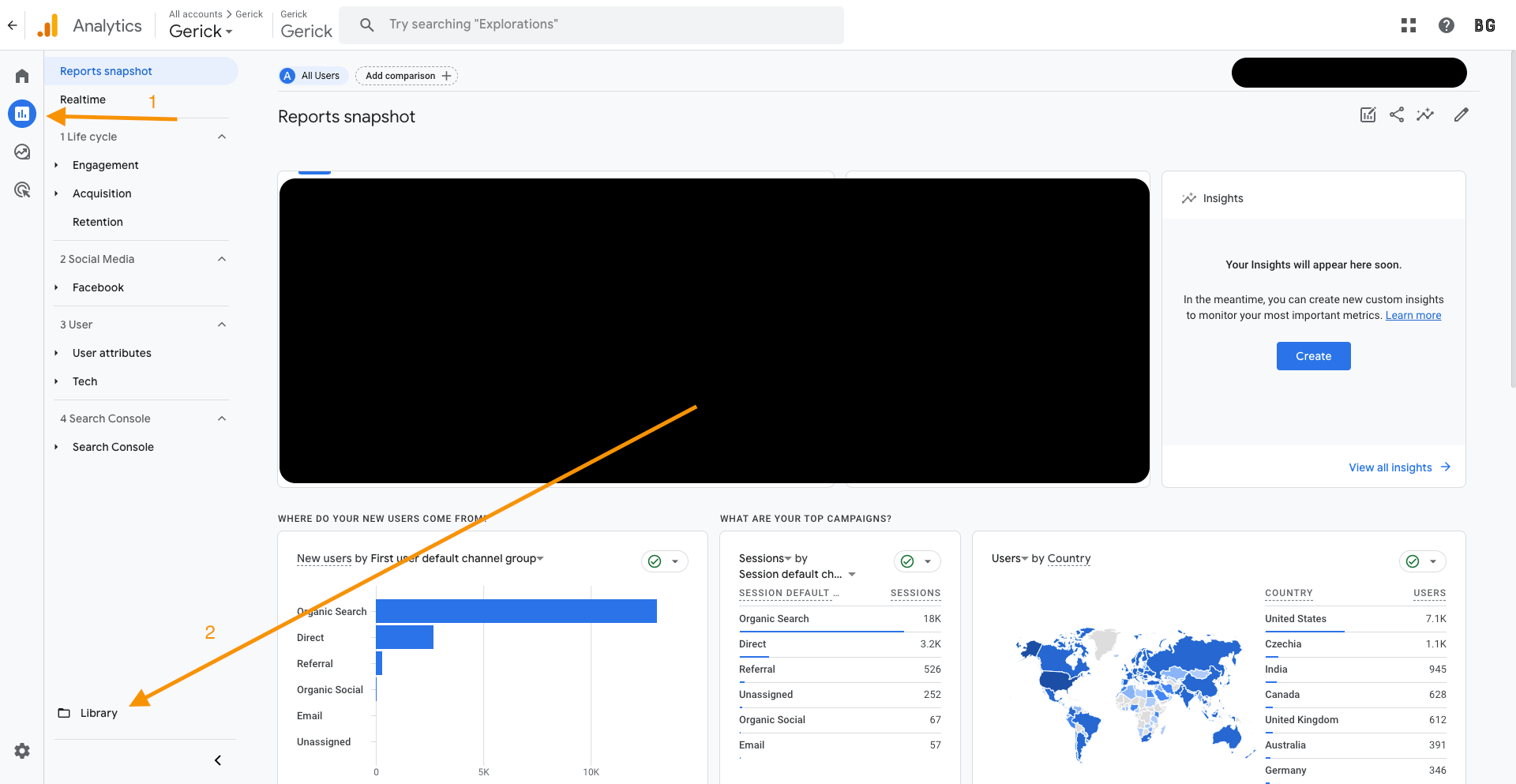
Go To Reports Library
Click the Reports link on the left popout menu, then click the Library folder at the bottom of the left-panel menu.
Activate Search Console Report
You should now see various report “Collections.”
Click the horizontal right-scroll button (since I’m all the way to the right in the screenshot below, you only see the left button, which the orange arrow is pointing to, but there’s a right one, too) until you see a box that says “Search Console.”
(You have to actually click the arrow button – GA4 won’t support a mouse-scroll gesture with your fingers on this feature.)

Note: I customized the names of my Collections to reorder my reports dashboard – they’re displayed in alphanumeric order from top to bottom – so you won’t see a “4” in yours.
Once you find it, click the three-dot menu button and select “Publish.” (Since mine is already published, I have the option to Unpublish instead.)
Your report should now be live. You may have to refresh the page and/or click the Reports link from the left pop-out again in order for it to show up.
View Your Organic Search (SEO) Terms in GA4
Now when you click the Reports link, on the left panel you should see the “Search Console” Collection. (Again, I customized the name of mine so yours won’t have a “4” at the beginning.)

Click on Search Console so that the menu opens.
You’ll see Search Console again. This is your Topic. Click that topic – Search Console – and it will open up to show two reports: Queries and Google organic search traffic.
These are included by default, and while you can customize them to your liking, they’re ready to go “out of the box.”

Click “Queries.”

You should now see all the search queries used to reach your site within the selected date range.
In fact, you can also see search terms for which you showed up on Google and users didn’t click. To see this, you can do one of three things:
1) Use the “Go To” option to jump to your final rows and work back from there. Since your report is by default sorted from most clicks to least, the rows at the end of your report will have zero clicks.

2) Scroll through the rows until you reach a point where there are zero clicks.

3) Click the column header for Organic Google Search clicks so that the arrow flips from pointing down to pointing up. You’re now viewing your report in reverse order – from fewest clicks to most.
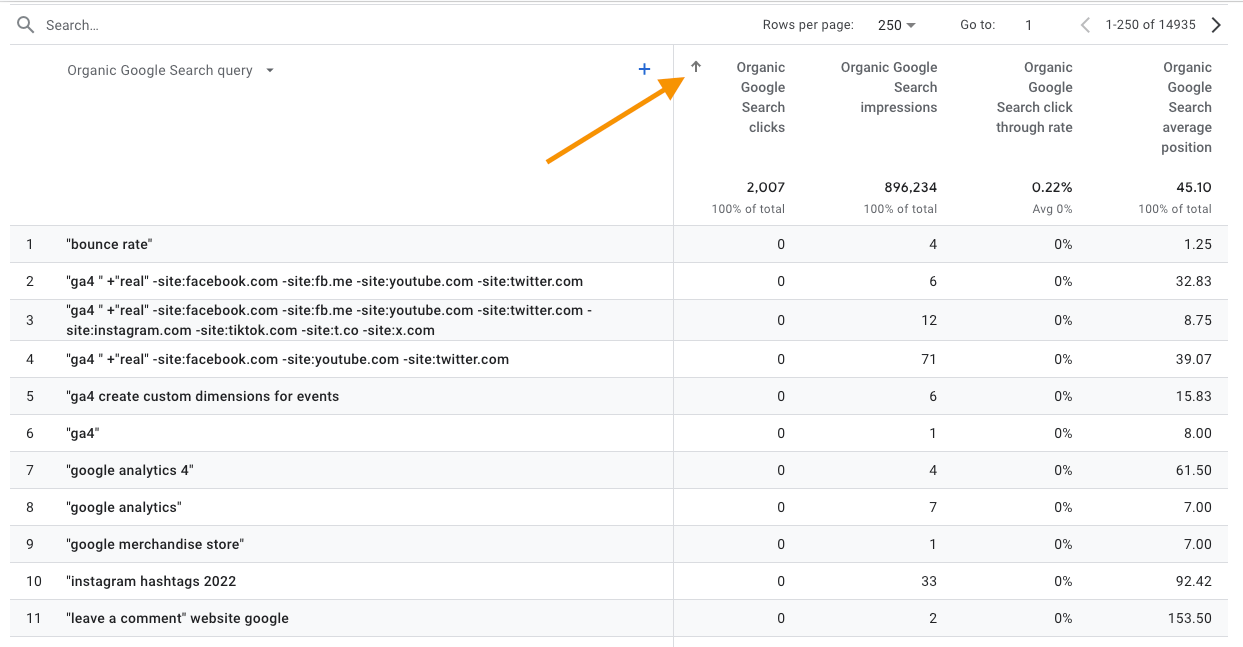
For simplicity’s and speed’s sake, I would probably go with option 1 or 3.
Rankings Data in the Search Console Report
You may have noticed the “Organic Google Search average position” column in the report. This is where Google says you rank, on average, for that keyword.
If you use other tools like Semrush or Ahrefs to check your rankings, you’re likely to notice a significant discrepancy. In this case, I would trust the third-party tools more than Google.
Counterintuitive, I know, but it’s worth mentioning.
Applying SEO Insights To Your Content
Now that you have this data, what can you do with it? Here are a few ideas:
High-Impression, Low-Click Queries
These are keywords for which you’re showing up frequently on the search engine results page (SERP), but users aren’t clicking your content. There are a few possible explanations:
- They’re getting all the info they need on the SERP itself (e.g. How old is [famous person]?)
- Your content doesn’t match their search intent (e.g. They search for “orioles” and want to learn about the Maryland state bird, but instead get results about the Baltimore baseball team)
- They do in fact want more info and your content does match their intent, but they’re choosing someone else’s page. This could be due to:
- Your title (though be careful tweaking this because it could affect your page ranking)
- Your meta description (this has no effect on ranking and can safely be experimented with)
- Your brand recognition may not be as high or as quality in the subjective eyes of the user
High-Click Queries
These are gold, especially if the corresponding click-through rate is high.
Since you’re attracting lots of users to your website with these search queries, you want to make sure that you’re giving them opportunities to convert and view more content on your website.
- Include on the page callouts for newsletter signups, purchases, registrations, donations or whatever is important to your organization
- Link to other related content that will keep them on your website longer
Caveat: GA4 won’t show you the exact page users landed on from a specific search query (I know – bummer), but there are a couple ways to reverse engineer this.
1. Use your common sense. Unless you have a ton of pages related to a particular search query, you should be able to narrow it down. Especially if you cross-reference with an organic search traffic report.
2. Type the search term into Google using an incognito browser and look for your highest-ranking piece of content. That’s almost certainly the one getting clicked.
What questions or tips do you have for the organic search query report? Let me know in the comments.
Leave a Reply